
How to record a hike or trip with iTrailog
Recording turns your walk, ride or drive into a track you can look back on: the route on a map, distance, time, elevation and the photos you took. Here's how to start, what you see along the way, and how to make it last all day.
Start recording
- Open iTrailog and allow location access when asked.
- Tap the Start Recording button on the right of the map.
- Give the track a name, or leave it blank to use the date, and tap Start. You can rename it later in the track details.
A panel at the bottom shows the time and distance. Pull it up for elevation, ascent and descent, speed, average speed, top speed and pace, an elevation chart and the places you've passed (place names need an internet connection).
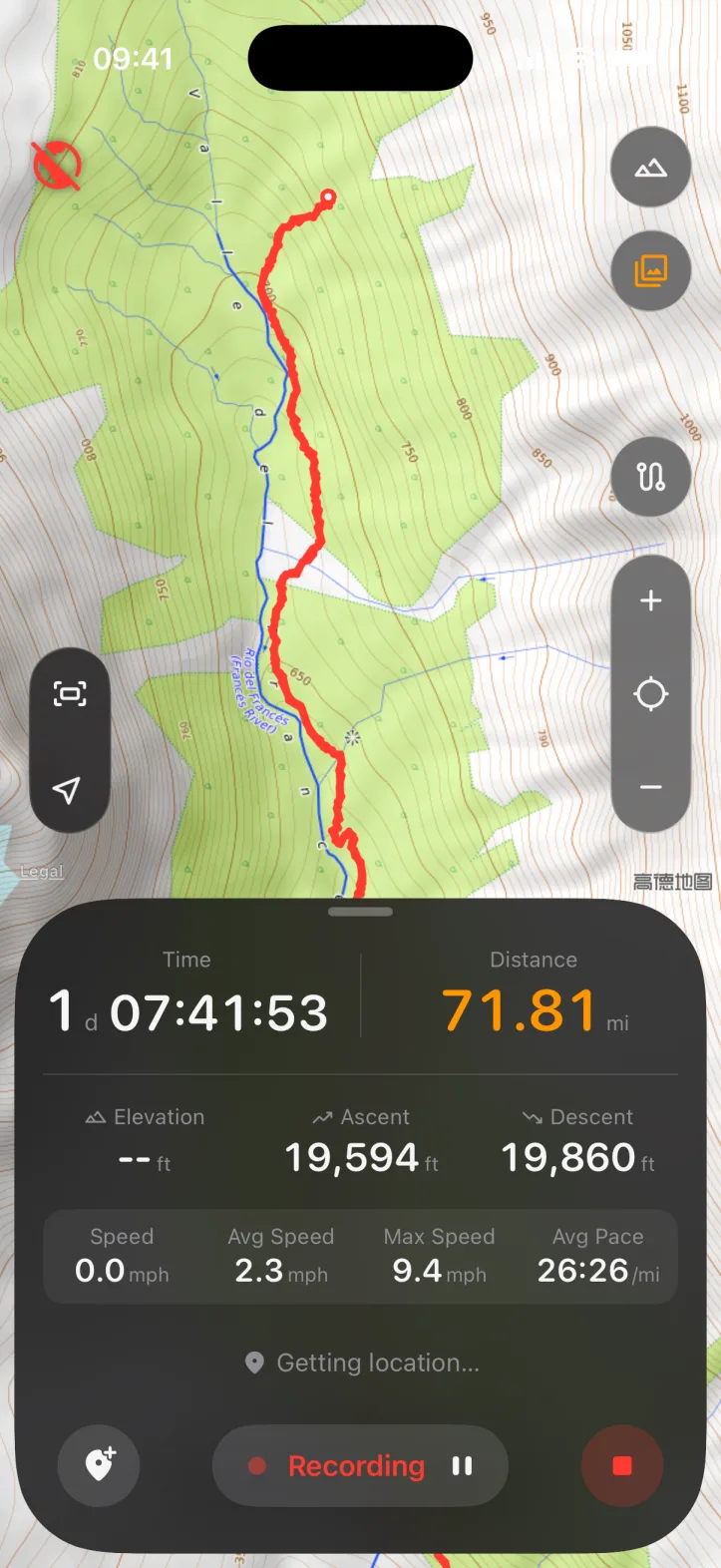
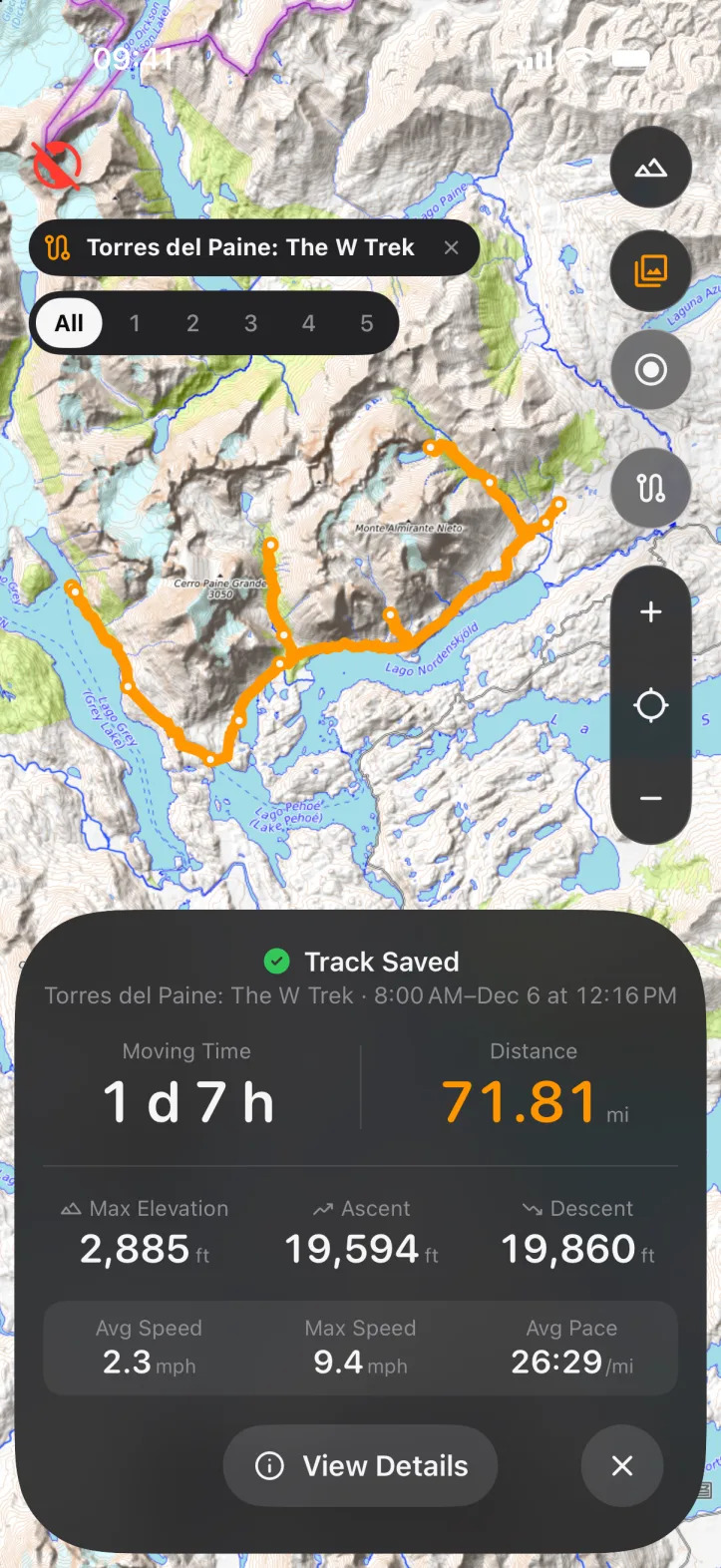
Pause, auto-pause and finish
- Pause: tap the Recording button. Tap Resume Recording to carry on. The clock counts moving time only.
- Auto-pause is on by default: after about a minute without moving, recording pauses on its own and the stop doesn't count as moving time. It resumes as soon as you move again, with no distance lost. You can turn it off in Map & Settings › Recording.
- Finish: slide the finish control to the right. The track is saved straight away and a Track Saved card shows the totals, with View Details to open it.
- Mark on the panel drops a waypoint at your position, attached to this track.
Forgot to start on time, or want to add the walk back to the car? Open the track and choose More › Resume Recording. The gap is drawn faded and isn't counted in the distance.
Recording with the screen locked
Recording keeps going when you lock the phone or switch to another app. While iTrailog is open on screen during a recording, it keeps the screen awake so you can glance at the map, so lock the phone when you don't need it: that saves the most battery.
- iPhone: time, distance and direction appear on the Lock Screen and in the Dynamic Island (Live Activity, on by default). Allow Motion & Fitness so auto-pause can rest the GPS while you stand still.
- Android: an ongoing notification shows the recording. Some phones stop apps in the background to save power: allow background running in Map & Settings › Background Running, where you'll also find tips for Xiaomi, Huawei, OPPO, vivo, Samsung and Meizu phones.
If the app is closed by the system mid-trip, open it again: it finds the unfinished recording and picks up where it left off, or lets you save or discard it.
After the trip
Open the track from Tracks & Waypoints to see the route, the day-by-day timeline and the photos you took along the way. From there you can trim it, export it as GPX or KMZ, or follow it again next time.