
How to open a GPX file on iPhone
Someone sent you a hiking route, or you downloaded a track from a trail site. iPhone can store a GPX file but can't show it on a map by itself. Here's the quickest way to open it, and to follow it once you're out there.
Why it doesn't just open
A GPX file is a list of GPS coordinates. The Files app can keep it, but there's no built-in app that draws it on a map, so tapping it shows a blank preview or the raw text. You need an app that understands GPX.
Open it with iTrailog
- Install iTrailog from the App Store. It's free and needs no account.
- Find the file wherever it arrived: Files, Mail, Messages, AirDrop or Safari's downloads.
- Tap the Share button (or long-press the file and choose Share) and pick iTrailog.
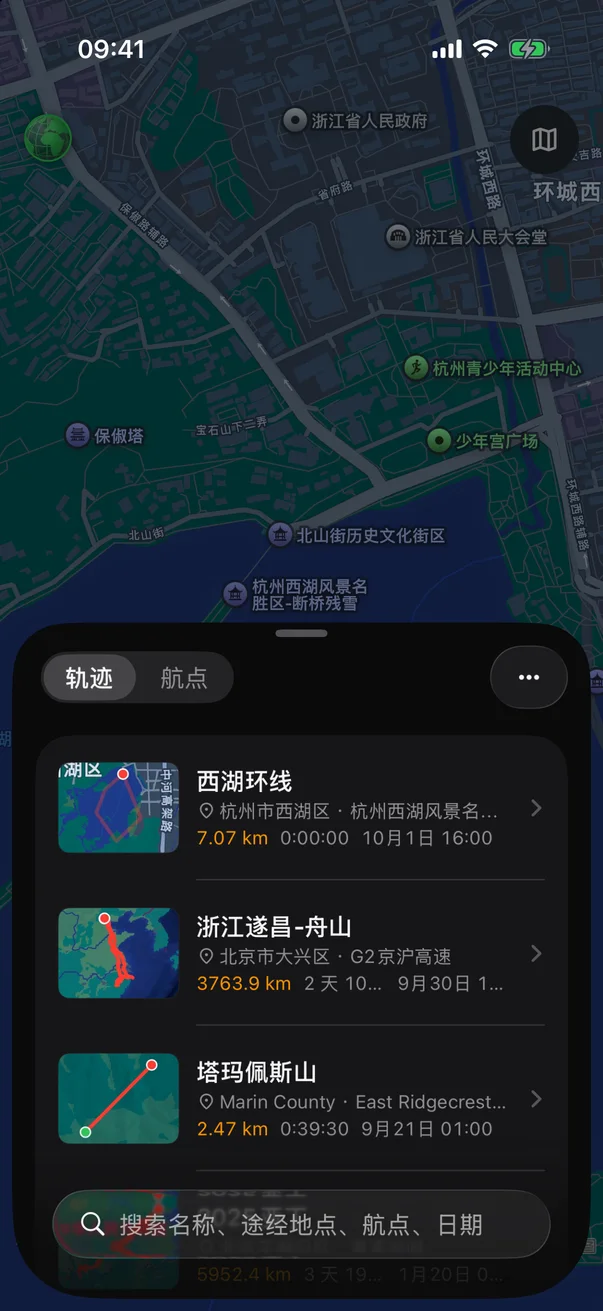
You can also start from the app: open your track list, tap … and choose Import Track File, then pick the file. KML and KMZ work the same way, and a file with several tracks or waypoints brings them all in.
What you get
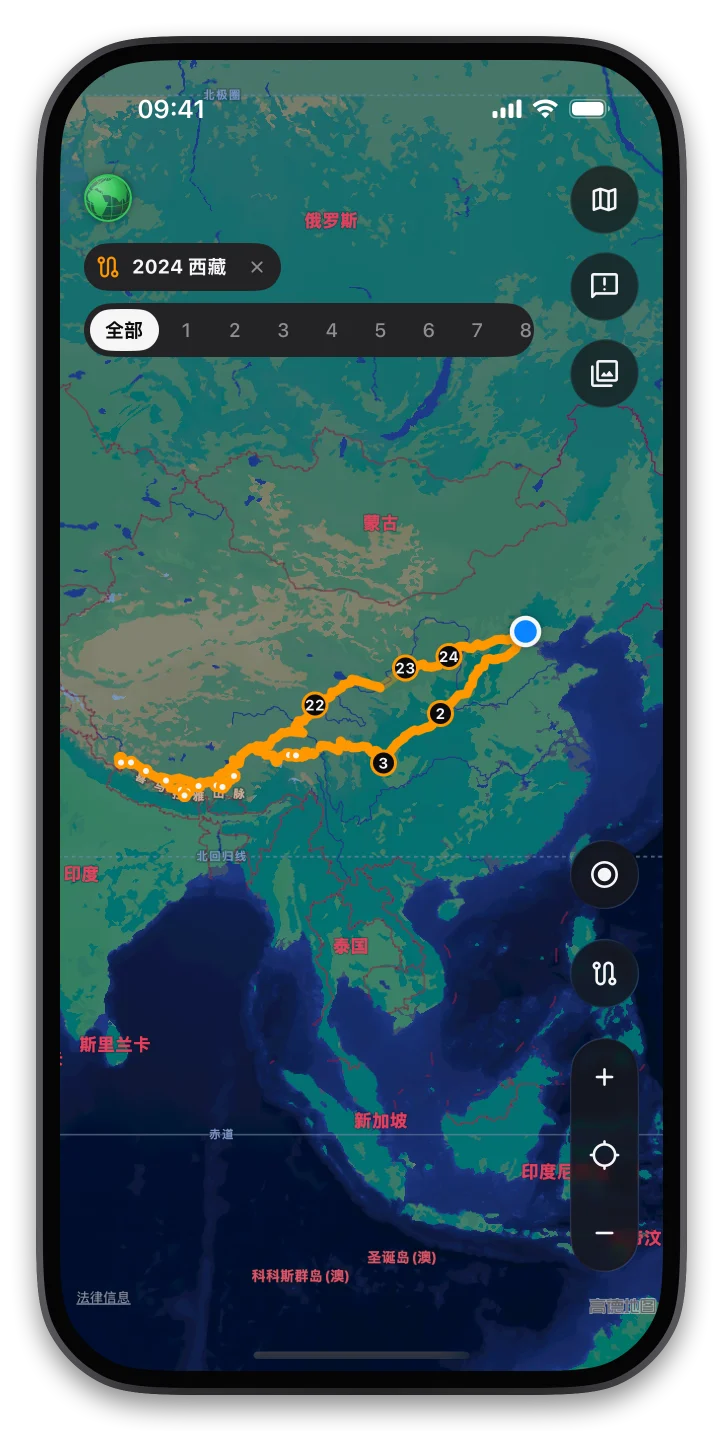
- The route on a map, with distance, ascent and descent.
- An elevation chart you can drag along to see each point.
- If the track was recorded, its times, speeds and the days of the trip.
- Waypoints from the file, with distance and direction from where you are.
Follow it on the trail
Open the track and start navigation to follow it, forward or in reverse. iTrailog tells you when you go off route, when you're back on it and when you arrive, with optional voice prompts. You can navigate without recording, or record your own track at the same time.
No signal where you're going? Download an offline map along the track before you leave. OpenStreetMap vector maps, USGS, GSI Japan and other open maps can be saved for offline use.
On a computer instead
To look at a GPX file on a Mac or PC, use the free web track viewer. See how to view a GPX file online.