
How to open a GPX file: drag it into your browser
Most people who hike, ride or travel have a few GPX files lying around: exported from a watch, downloaded from a trail site, or left behind by an app they no longer use. You don't need to install anything to look at them. Drag one into the iTrailog web viewer and it's on the map a second later.
Where your GPX files come from
GPX is the format almost every GPS device and app can export. If you've used any of these, you probably have some:
- Watches and bike computers: Garmin Connect, Coros, Suunto, Polar and Wahoo all export an activity as GPX.
- Fitness and route apps: Strava, Komoot, AllTrails, Wikiloc, Outdooractive and Gaia GPS.
- Old phone apps: tracks saved by apps that are no longer updated, such as MotionX-GPS. See how to move your MotionX tracks.
- Planned routes someone shared with you, and KML or KMZ files from Google Earth and Google My Maps.
Opening a GPX file directly only shows a wall of coordinates. To see the route, you need a viewer that draws it on a map.
Drag the GPX file into your browser
- On a computer, open itrailog.com/viewer.
- Find your GPX file in Finder, File Explorer or your Downloads folder.
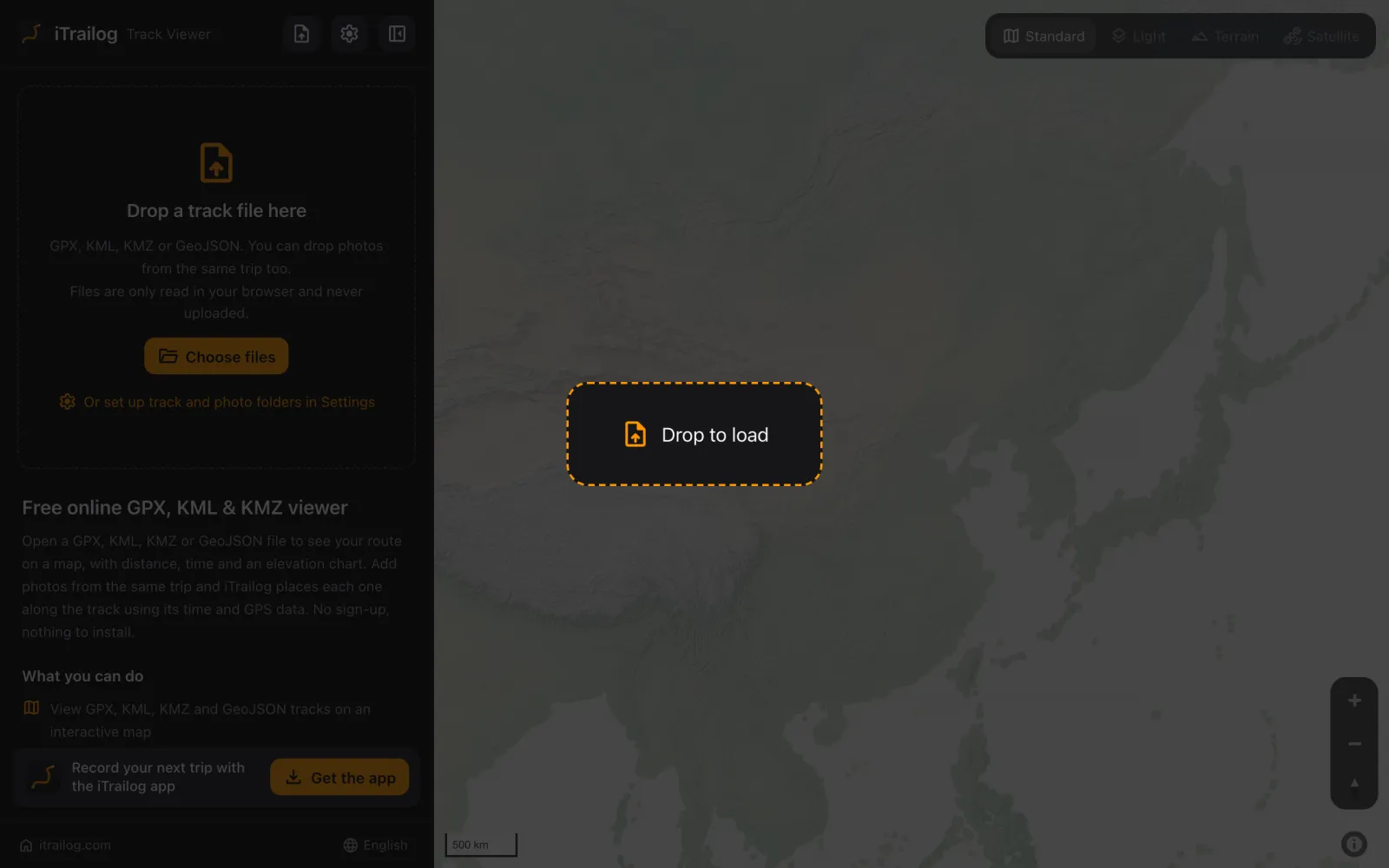
- Drag it anywhere onto the page. When you see Drop to load, let go.
The track appears on the map with its distance, total and moving time, speed, pace, ascent and descent, and an elevation chart you can follow with the mouse. KML, KMZ and GeoJSON files open the same way.
Open several tracks at once
Select several files, or a whole folder, and drag them in together. Each track goes into the list at the top left, so you can switch between them or remove one you don't need. Photos from the same trip can go in with them: they're placed along the track by their GPS position or capture time.
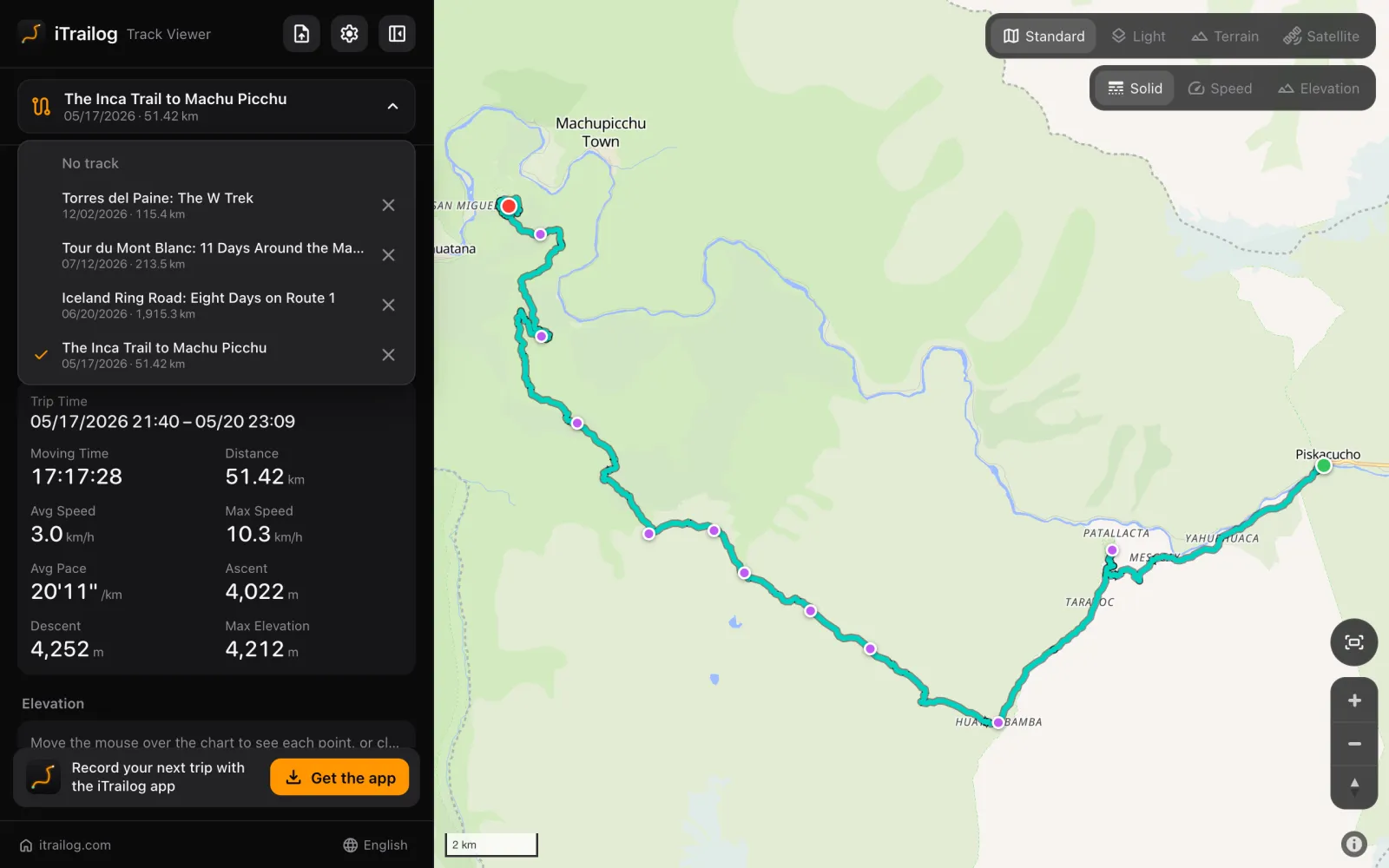
The tracks you open are remembered in this browser, so they're still there next time. To clear them, open Settings and remove the tracks opened on their own.
No drag and drop? Choose the file
On a laptop where dragging is awkward, click Choose files on the empty page, or the open-file button at the top of the side panel, and pick the GPX. In Chrome or Edge you can also install the viewer as an app, and then double-click any GPX file to open it.
Keep a whole folder of tracks
If you keep all your trips in one folder, choose it in Settings instead. Every track in it and its subfolders is listed, and Chrome and Edge pick up new files on their own. Both ways work together: files you drop in sit in the same list as the tracks from your folder. More in how to view a GPX file online.
Your files are never uploaded. They're read inside your browser, which is also why it works with large, multi-day tracks without waiting.
Questions
Do I need an account or an app to open a GPX file?
No. The viewer runs in your browser: no sign-up, no download, no plugin.
Is my GPX file uploaded?
No. The file is read inside your browser and stays on your computer. The only thing sent out is the coordinates of a point when the viewer looks up its place name.
Which browsers work?
Chrome, Edge, Safari and Firefox on a computer. Drag and drop works in all of them; Chrome and Edge can also remember a track folder.
I dropped a file and nothing happened. Why?
The viewer opens .gpx, .kml, .kmz and .geojson files. If you downloaded a .zip, unzip it first, then drop the GPX inside.
Can I edit or convert the GPX here?
No, the viewer is for looking. To trim a track or export it as GPX or KMZ, use the iTrailog app on your phone.